> ## Documentation Index
> Fetch the complete documentation index at: https://bunnynet-cb9733c2-claude-jolly-knuth-4rxce7.mintlify.site/llms.txt
> Use this file to discover all available pages before exploring further.
# Environment Variables
> Configure your container's runtime settings using environment variables.
Environment variables allow you to provide dynamic configuration options to your container without hardcoding values in your code.
## Automatic detection
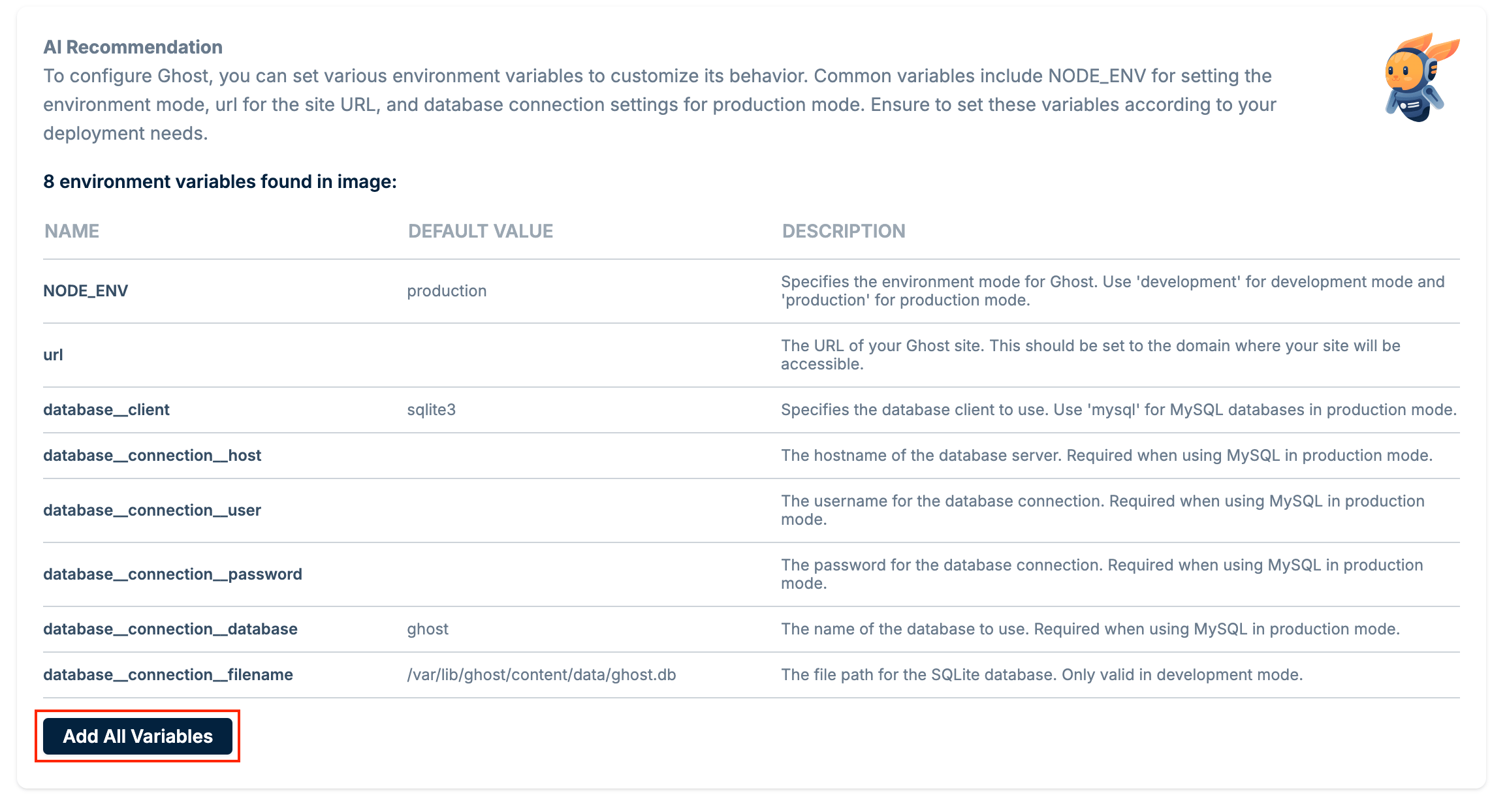
When you select a registry image, Magic Containers scans the image metadata to identify environment variables the container might use. If detected, the variables are displayed with their names and any default values.
Automatic scanning is currently only supported for public Docker Hub images.
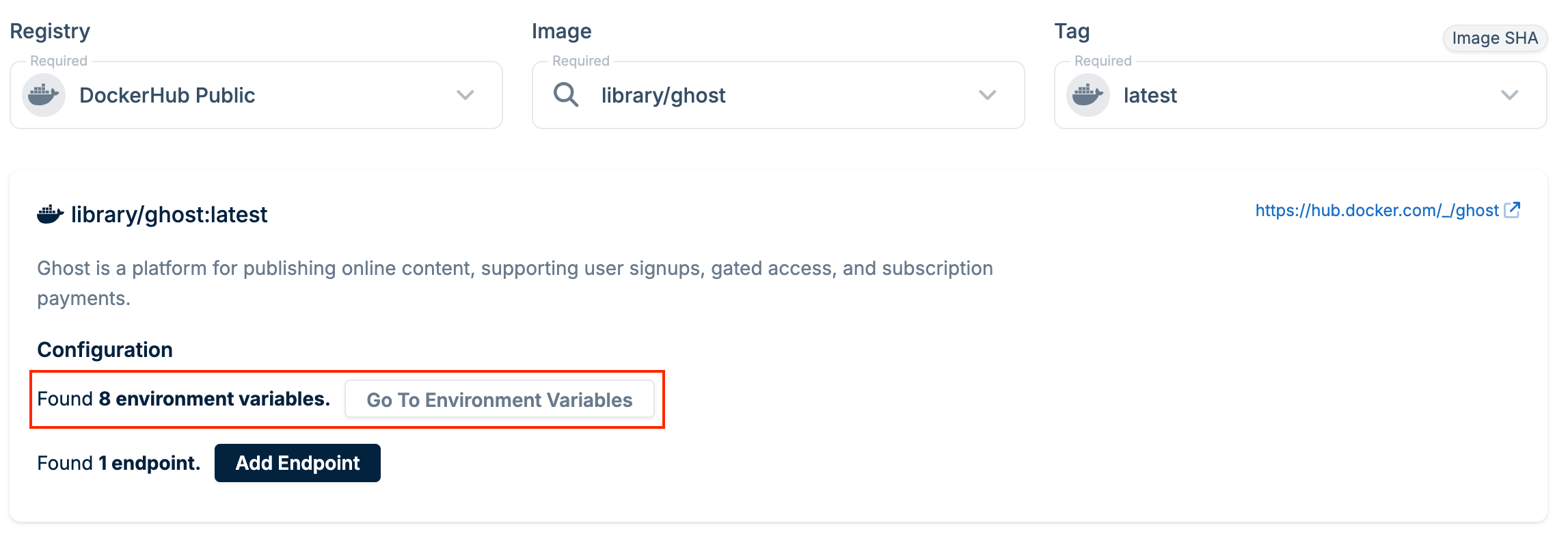 Click **Go To Environment Variables** to add all detected variables with a single click.
 ## Manual configuration
If no variables are detected, or you need to add additional ones, you can configure them manually:
1. Go to **Magic Containers** and select your container.
2. Click **Container Settings**, then **Edit**.
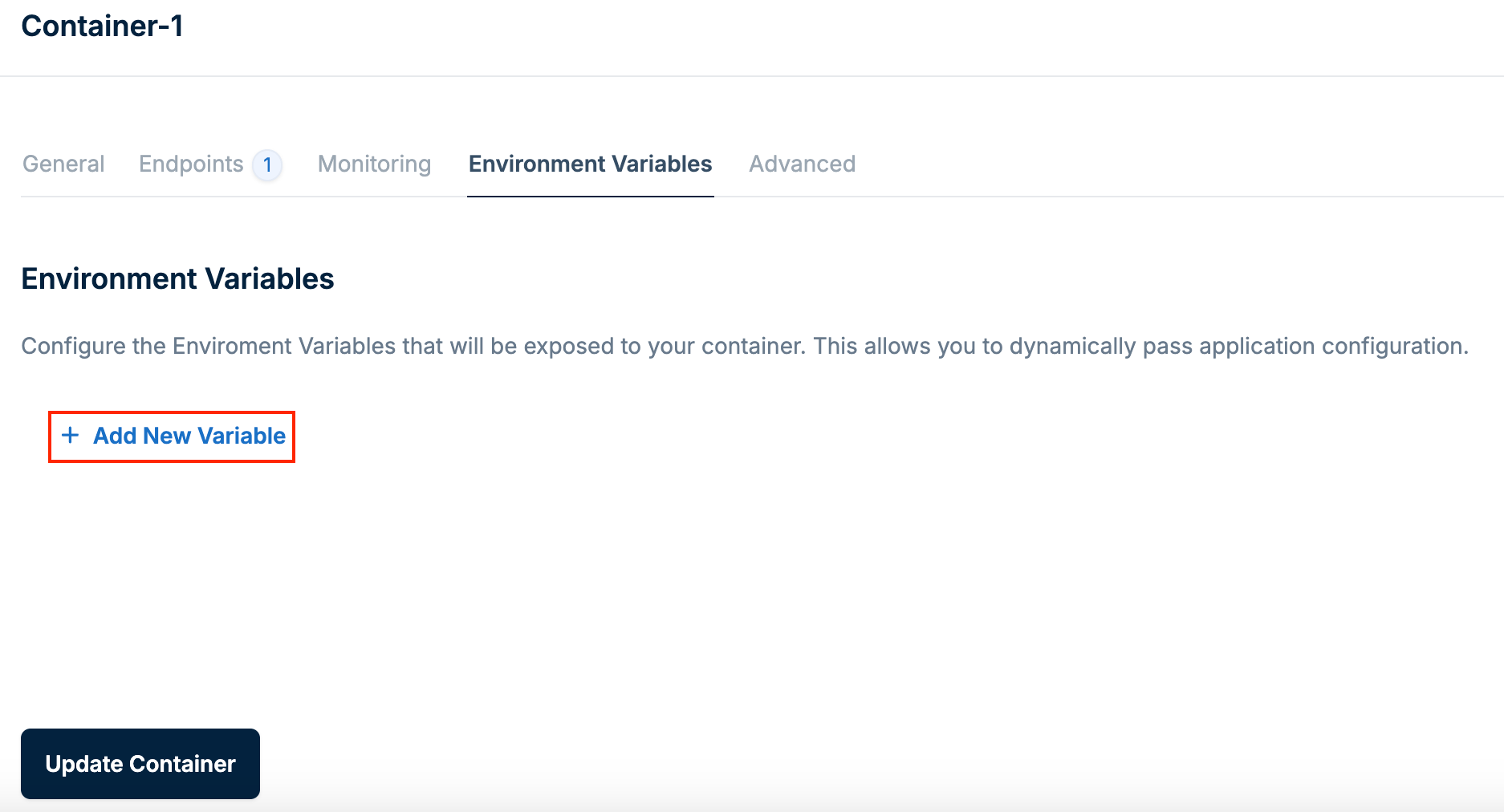
3. Select the **Environment Variables** tab and click **+ Add New Variable**.
## Manual configuration
If no variables are detected, or you need to add additional ones, you can configure them manually:
1. Go to **Magic Containers** and select your container.
2. Click **Container Settings**, then **Edit**.
3. Select the **Environment Variables** tab and click **+ Add New Variable**.
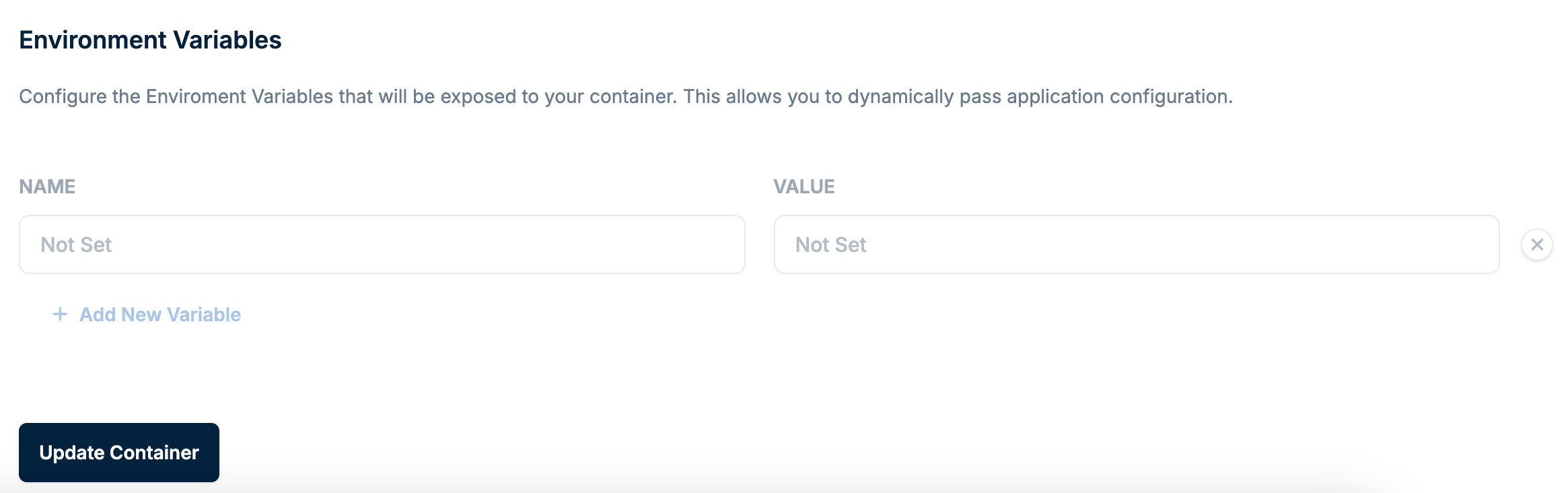
 4. Enter the variable name and value, then click **Update Container**.